

Guru – Game Detail Setup and Configuration
Entering Games
The Game Details feature allows you to both add and edit games in the system. Game Details differs from Reader Units by displaying a list of all games ever to exist in the system, whereas Reader Units displays the games currently in the location.
Before a user can assign a card reader ID and segment to a game, the properties of that game must first be defined within Game Details.
Adding A New Game
- Click on the Attractions, Games & Readers tab at the top, you may be requested to log in
- Click on Game Details
- Click on the Add icon.
- Click on Add New Game in the lower left.
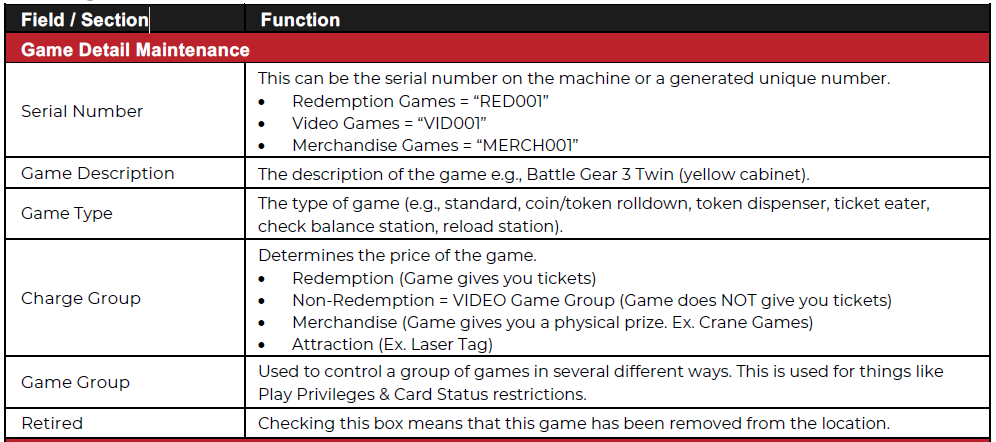
- Add required details such as Game Description, Charge Group, Game Group.
- Choose Game Category and Game Class.
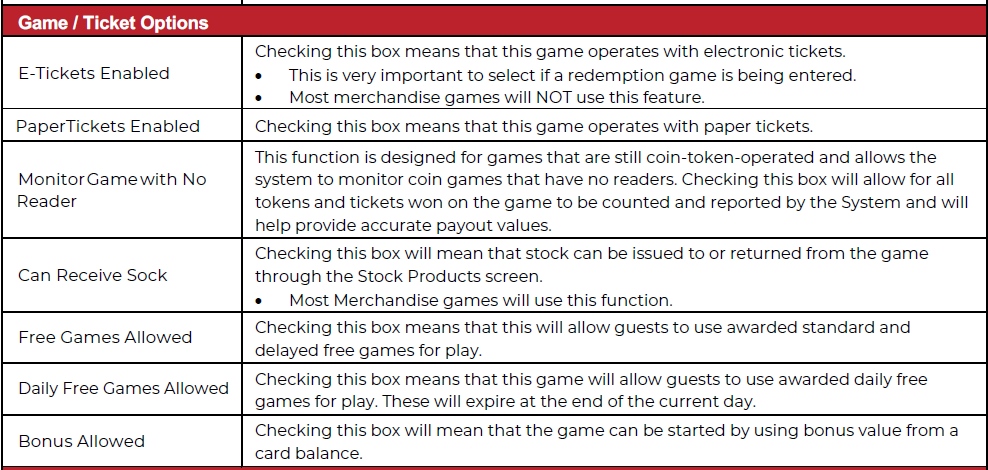
- Select the Game / Ticket Options that apply to the game you are adding.
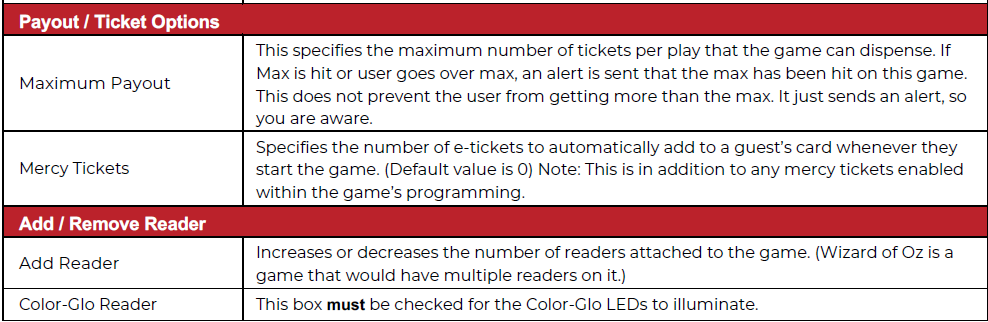
- Click on Add / Remove Readers.
- Click on Add Reader button for each reader that will be installed on this game.
- Once your readers are added verify each reader name and check ColorGlo Swiper.
- Click on Save Changes once you have everything configured.
uNotes on Adding a New Game
• After completing these steps, you are now ready to assign a reader to your game by going into Reader Units.
Editing A Game
- From the Attractions, Games & Swipers menu, select Game Details.
- Highlight the game name in the list and select Edit.
- Make the relevant changes.
- Select Save Changes.
Defining Game Details
Was this article helpful?
That’s Great!
Thank you for your feedback
Sorry! We couldn't be helpful
Thank you for your feedback
Feedback sent
We appreciate your effort and will try to fix the article