

Guru – Stock Setup & Configuration
Creating New Stock Locations
In basic terms, Stock Locations are areas inside a location where stock is kept and monitored.
Examples of stock locations might include; storeroom 1, storeroom 2 and prize counter. Creating
separate stock locations enables the transfer of stock between these areas to be recorded. This allows for any stock discrepancies to be pinpointed as having occurred within a certain area. Additionally, separate stock locations allow for more accurate stock take procedures as separate stock takes can be completed for each stock area. This is particularly useful for large locations that have separate staff accountable for each stock location.
Creating A Stock Location
- From the Products menu, select Stock Locations.
- Select Add.
- In the Description field, enter a name for the Stock Location (e.g., Prize Wall).
- If necessary, enter the Department the stock location belongs to and the Financial Account.
- Select Save Changes.
Stock Master List
Entering stock can be handled in two different ways. One way is by directly importing from the DPL
IMPORT tool. The other way is manually through the Stock Master List. Through the Stock Master List, you can add and edit products and additionally access links to Coupons, Categories, Classes, Taxes, and
Suppliers. This allows easy back and forth movement should you need to make simultaneous changes in other areas.
uNotes on Stock Master List:
- When entering a new item, you are not required to enter information into every available field. However, when
- you provide more information to the system you will have more reporting options available and achieve greater
- functionality in multiple areas of the Stock Management System.
- The Embed system can also be set up to allow a Head Office exclusive access to the Stock Master List, centralizing the stock management process.
- For stores belonging to a network of locations (where one company controls several stores or controls a franchised network), this list is usually maintained at Head Office only and cannot be modified in a store (unless the store has been specially set up to run as an independent store).
Understanding Product Classes
The Product Classes window allows the user to group particular products based on their Product
Categories.
Defining Product Classes for each Product Category enables the user to drill down and organize their list of stock products. This is particularly useful for larger locations which hold thousands of stock items. In order to maintain a clean and functional list of products, it is important to categorize each item correctly so that the employee(s) responsible for maintaining the stock system can work efficiently and minimize errors. An example of how Product Classes might apply to a location could be when distinguishing clothing items. If there is a Product Category named “Jeans” then the product Classes associated with this Product Category might include the Product Classes of “Small”, “Medium”, “Large” and “Extra Large”.
Understanding Product Categories
The Product Categories window allows you to create and maintain categories which group all similar stock items together.
A typical list of categories might include:
- Redemption
- Beverages
- Food
-Adding & Editing New Stock Items
- From the Products menu, select Stock Master List.
- Click the Add button.
- Enter in all applicable product information in the provided fields (see below for field descriptions).
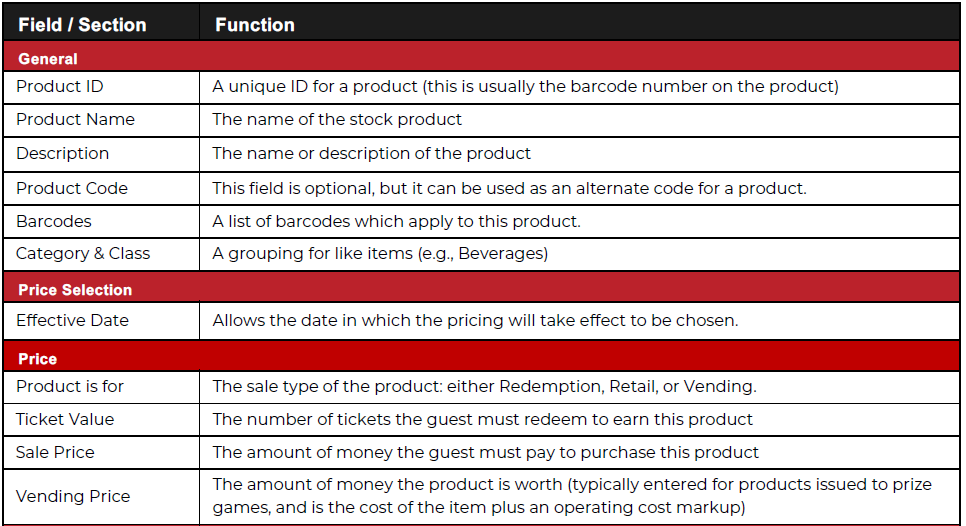
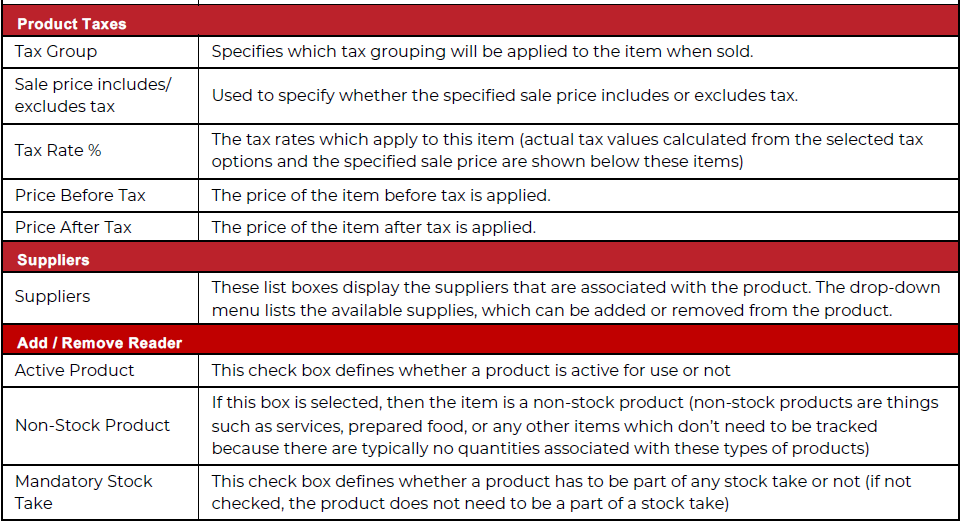
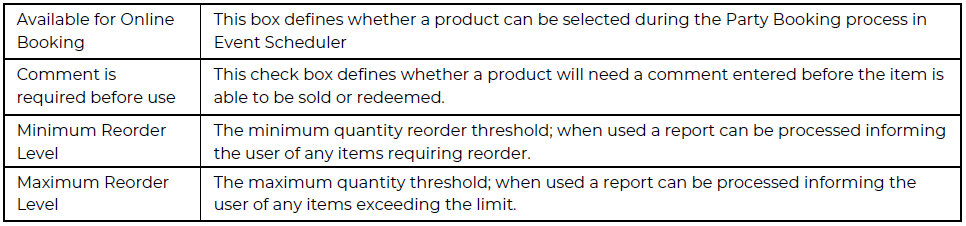
- When finished, click Save Changes. Referenced in the table below is full description of each field within the Stock Products window.
Importing a Packing List (DPL/EPL Import Tool)
The DPL/EPL Import tool is used to import a Digital Packing List (DPL) or Embed Packing List (EPL) file into TOOLKIT. Each file format is different to the other and the specifications are described at the end of this article.
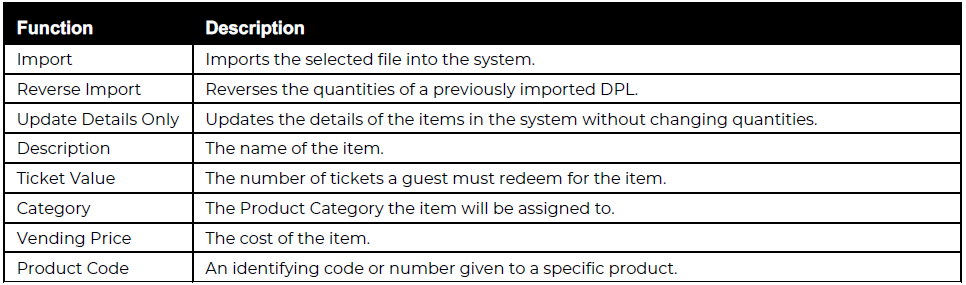
The DPL/EPL Import tool is used to import a Digital Packing List (DPL) or an Embed Packing List (EPL) file into the Embed system. Redemption suppliers that support this feature will, upon shipment of an order, provide a file formatted to the DPL or EPL specifications which contains the properties of the items in that order. This file is then imported into the system, automatically adding new items into the database and updating quantities of existing items, descriptions, ticket values and prices.
IMPORTING A DPL or EPL
- From the Supplier drop-down menu, select the supplier that the products were purchased through.
- Choose which stock location the products will be stored in from the Stock Location drop-down menu.
- Browse to the folder where the file is located; by default, the Filter drop-down list only displays files with a .DPL or .EPL extension, although files with a .TXT or .CSV extension can also be imported.
- Select the desired Available file from the list; only one file can be imported at a time.
- Confirm that all Options are configured to your preferences, then click Import.
uNotes on importing DPL’s or EPL's
- In the event the file contains an item whose properties are different from those in the Stock Master List, the system will adhere to the Update Options as defined in Update Options.
- If the file contained one or more items not already in the Stock Master List, a New Item Summary, will be displayed. Occasionally, an item in the file will have a value different from that in the Stock Master List. For example, the last time you ordered Jumbo Sunglasses (Product ID #ABC123) it was valued at 80 tickets; however, the order you just received values the item at 100 tickets. Because the system doesn’t know which value to use, it will respond by following the instructions given in the Update Options.
Was this article helpful?
That’s Great!
Thank you for your feedback
Sorry! We couldn't be helpful
Thank you for your feedback
Feedback sent
We appreciate your effort and will try to fix the article